Text node auto size
Text nodes can be sized fixed (a width/height you set explicitly) or auto (the node hugs the rendered text). You can switch any edge back to auto without opening the inspector — just double-click that edge.
How to use
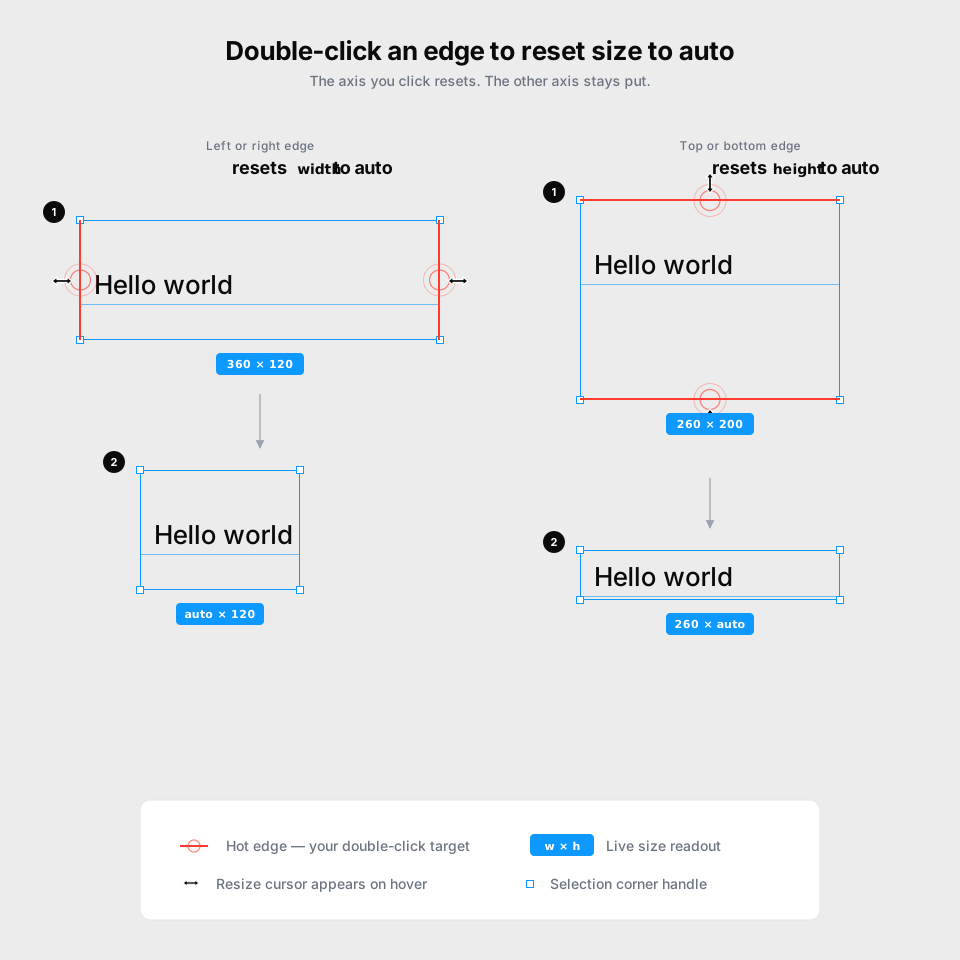
- Double-click the left or right edge to set width to
auto. - Double-click the top or bottom edge to set height to
auto.
The double-click only resets the axis you clicked. The other axis keeps whatever size it had — fixed or auto.
Alignment is preserved
When the node shrinks to fit, the side that matches the text alignment stays put. The opposite side moves in.
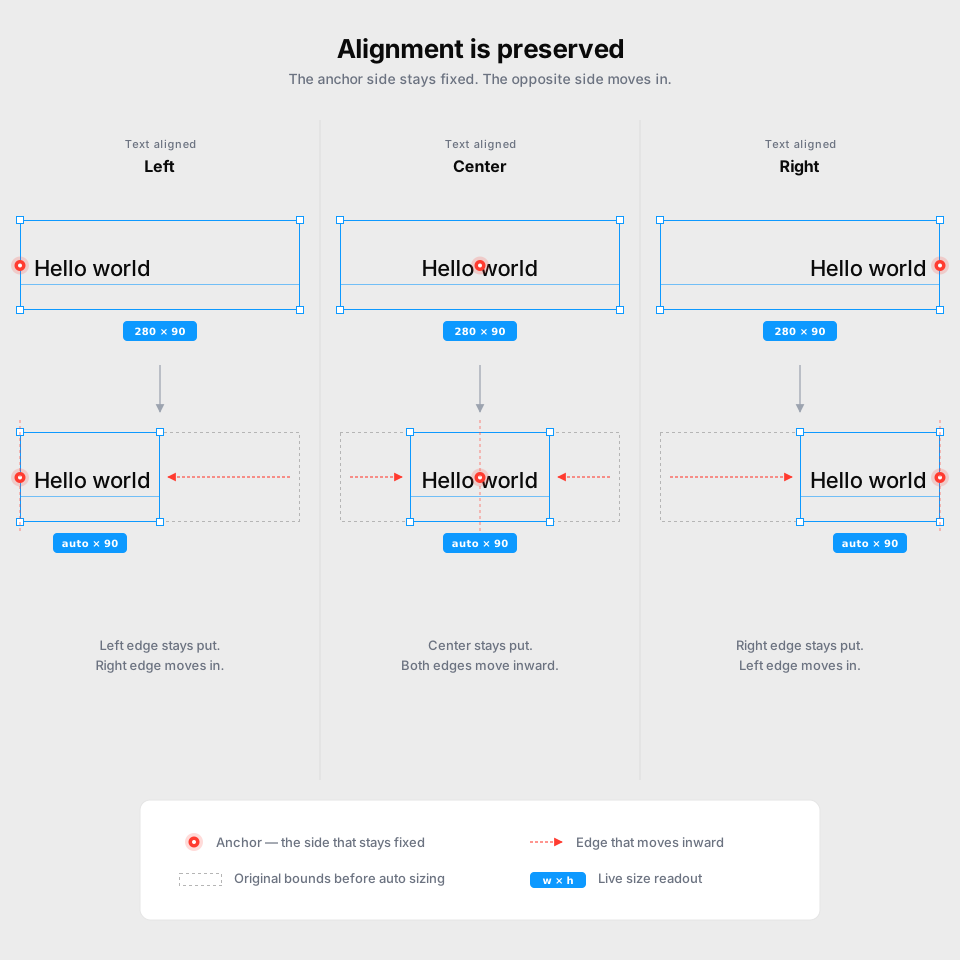
| Text alignment | What stays fixed | What moves |
|---|---|---|
| Left / top | Left or top edge | Opposite edge |
| Center / middle | Center of the axis | Both edges |
| Right / bottom | Right or bottom edge | Opposite edge |
This means the text appears to stay in place while the bounding box collapses around it, instead of jumping to a new position.
When to use it
- After typing into a fixed-size text node that ended up with extra whitespace around the content.
- After pasting text that was longer than the original node, leaving the height padded out.
- Any time you want the node to track the text again without re-typing values into the inspector.